A free app blocker for Android, with no ads
Updated:
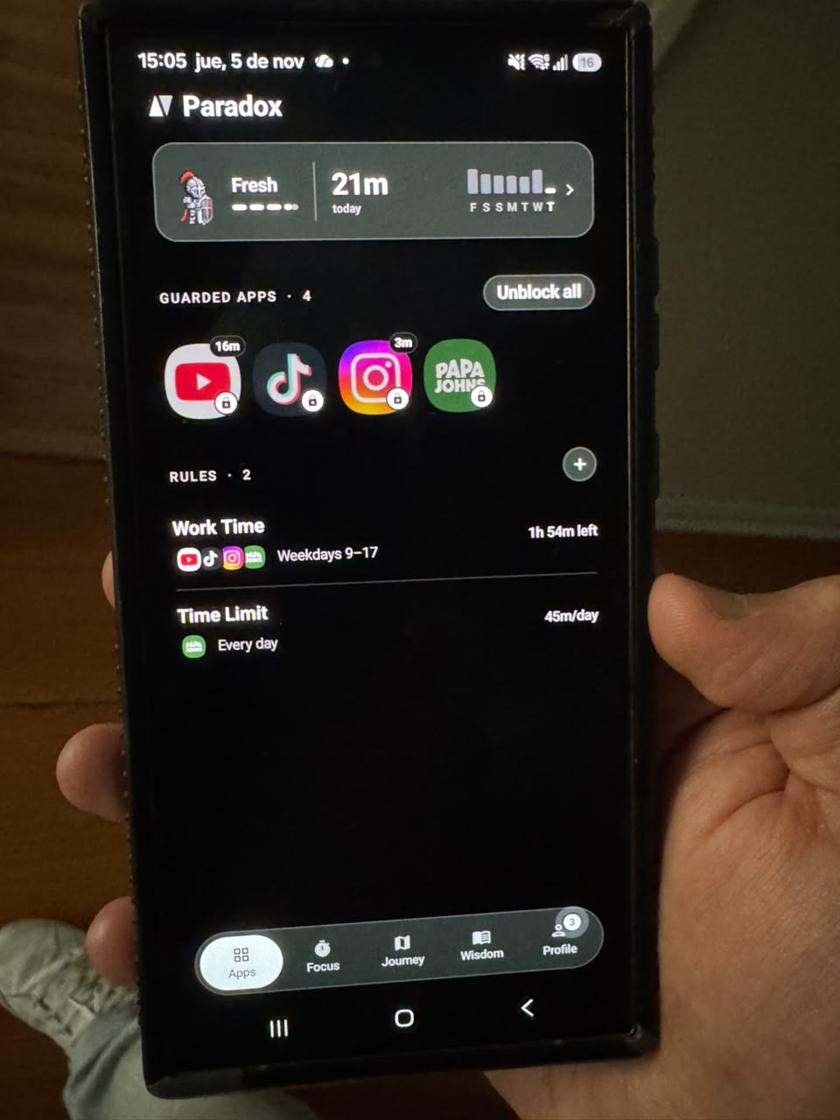
To block apps on Android for free, you can use the app timers in Digital Wellbeing, which every recent Android phone has, or install an app blocker. Paradox is a free app blocker for Android with no ads: you pick the apps and websites, set the hours, and a guardian stands in front of them when you try to open one.
The built-in way: Digital Wellbeing app timers
Most Android phones come with Digital Wellbeing. It shows how long you spend in each app and lets you put a daily timer on it. When the timer runs out, the app icon goes grey and the app won't open until midnight.
The steps are usually like this, though the names change a little between phone makers:
- Open Settings and tap Digital Wellbeing & parental controls.
- Open the Dashboard (on some phones it's called App timers).
- Tap the app you want to limit, for example TikTok.
- Set a daily timer and tap OK.
Where the built-in timer falls short
App timers are a good start, and they cost nothing. But most people who try them hit the same three walls.
First, they only count minutes. For hours like "no Instagram from 9 to 5" you need a second tool, Focus mode, which pauses its apps on a schedule but is easy to switch off, and the timers don't reach websites outside Chrome. Second, one tap in Settings undoes the timer, and after a few days that tap becomes automatic. Third, there's nothing at the moment you open the app: just a grey icon and a toast, and nothing that makes you pause and think.
What to look for in an app blocker
- Free to block, not a trial that turns into a subscription.
- No ads. An app meant to protect your attention shouldn't sell it.
- Schedules and daily limits, not only one or the other.
- Websites as well as apps, so the scroll doesn't just move to the browser.
- Something at the moment of impulse that makes you stop for a few seconds, instead of a lock you'll uninstall to escape.
How Paradox blocks apps on Android
Paradox is a free app blocker for Android 8.0 or later, on Google Play. Blocking is free forever and there are no ads, ever. You don't need an account to use it.
You choose the apps you want held back (TikTok, Instagram, YouTube, a game, anything) and the websites too. Each rule has its hours, like a 9 to 5 work rule, or a daily allowance, like 45 minutes a day. Two rules are ready the moment you install.
When you open a blocked app, a pixel-art guardian steps in front of it. You can close it, wait, win a short pause, or tap "Read something instead" for a two-minute read. You can always switch a block off on purpose. Paradox adds friction at the moment of impulse; it doesn't take your phone away.
And it rewards the days you hold back. The less you use your blocked apps, the more XP you earn, your guardian travels further on a map, and you level up and collect new guardians. Many people find they don't want to let their guardian down.
A simple setup that tends to stick
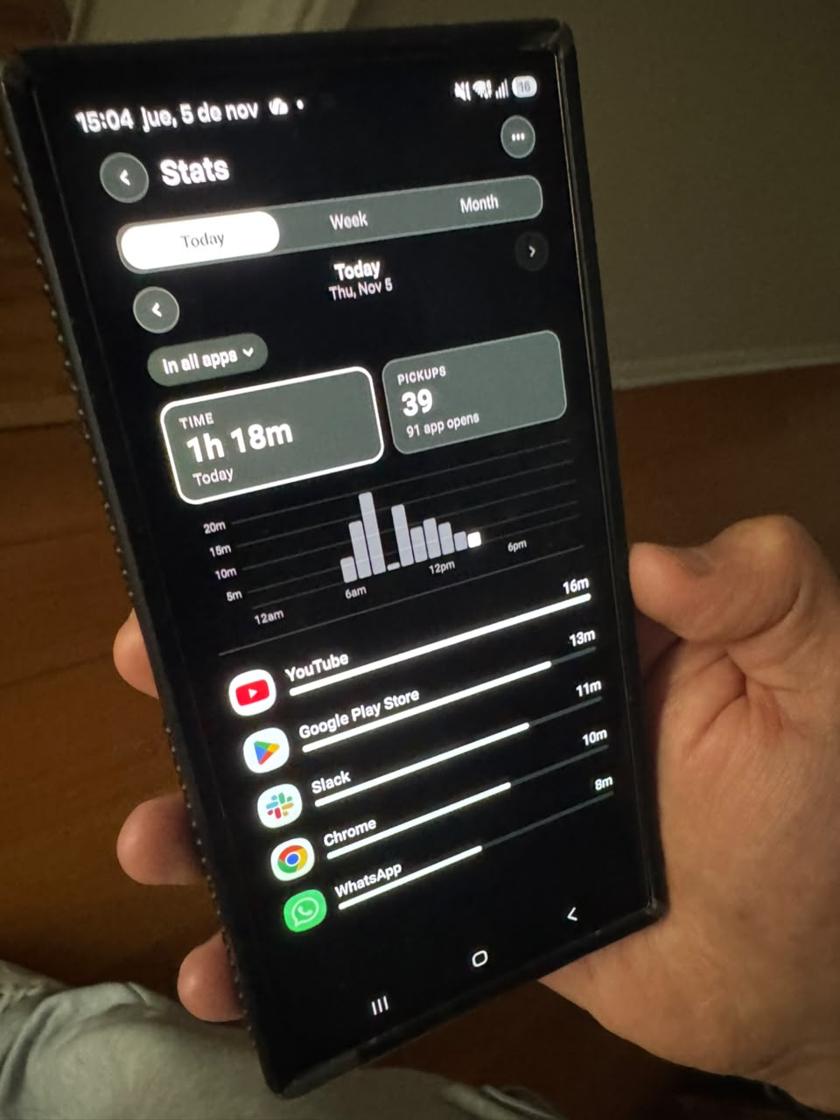
Start small. Pick the two or three apps that eat most of your day, not every app on your phone. Digital Wellbeing's Dashboard shows you which ones they are.
Then give them one rule for the hours that matter, like your work or study hours, and a daily allowance for the rest of the day. 45 minutes is a common starting point, and you can change it whenever you like.
Leave the rest of your phone alone. Maps, messages and your bank should never be behind a wall. The goal is fewer automatic opens of the apps that pull you in, not a phone you can't use.
After a week, look at your stats and adjust. If you keep winning pauses on one app at the same time of day, that's the hour to protect.
Blocking websites, so the scroll doesn't move to Chrome
A common surprise: you block the Instagram app, and a day later you're scrolling instagram.com in the browser. Add the sites to the same rule as the apps. Paradox blocks them in every browser on your phone, so closing one door doesn't open another.
The two permissions it asks for, and why
Android only lets an app stand in front of another app with two permissions. Accessibility lets Paradox see which app or website is open, never what you type, and nothing leaves the phone. Usage access lets it count your minutes in each app for daily limits and stats.
If you have a Xiaomi, Redmi or POCO phone, Paradox asks for two more settings that MIUI and HyperOS switch off for new apps. Our guide to blocking apps on Samsung and Xiaomi explains them.
Common questions
Is there a completely free app blocker for Android?
Yes. Digital Wellbeing's app timers are free and built in. Paradox is also free to block apps and websites on Android, with no ads. Its optional Premium only adds extra guardians, attacks and backgrounds.
Can I block TikTok or Instagram only at certain hours?
Yes. In Paradox, make a rule with just TikTok and Instagram and give it its own hours, like 9 to 5. Everything else stays open, and those two open again in the evening. On Android, Digital Wellbeing's Focus mode can also pause chosen apps on a schedule.
Can an app blocker on Android block websites?
Some can. Paradox blocks the websites you choose in your browser by reading the address bar through the Accessibility permission. Digital Wellbeing's timers cover apps, plus websites only in Chrome.
Why does an app blocker need Accessibility permission?
It's how Android lets an app know which app or site is on screen so it can step in front of it. Paradox uses it to see what is open, never what you type, and nothing leaves your phone.
Can I still switch the block off?
Yes. Paradox is built to add a few seconds of friction and thought, not to lock you out. A lock you can't open is a lock you end up deleting.