How to block TikTok on iPhone and Android
Updated:
To block TikTok, set an App Limit on it in Screen Time (iPhone) or an app timer in Digital Wellbeing (Android), or use TikTok's own daily screen time setting. These work if you respect them. If you keep tapping past the limit, use an app blocker that puts real friction in front of TikTok, like Paradox, which is free on both phones.
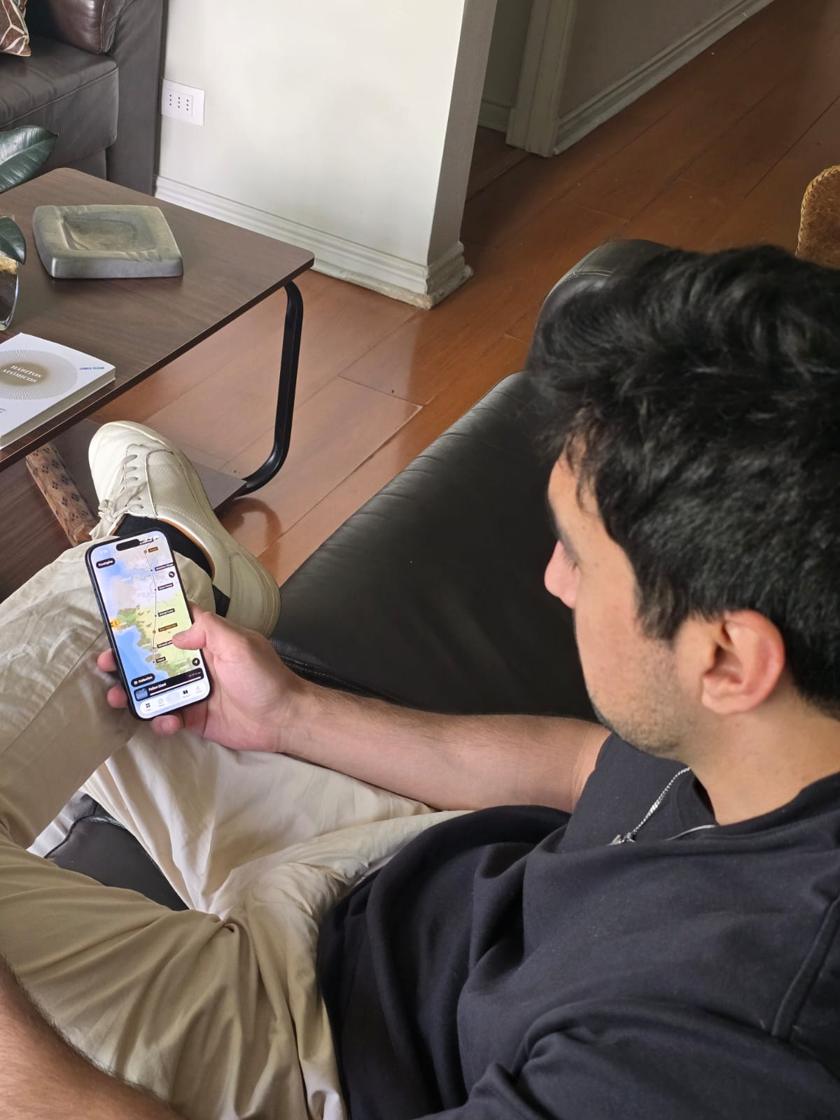
Block TikTok on iPhone with Screen Time
To block it only at certain hours, use Downtime in the same Screen Time menu and leave TikTok off the list of always-allowed apps.
- Open Settings and tap Screen Time. Turn on App and Website Activity if it is off.
- Tap App Limits, then Add Limit.
- Open Social, select TikTok, and tap Next.
- Choose a daily time. Set it very low (1 minute) if you want TikTok effectively blocked.
- Make sure Block at End of Limit is on, then tap Add.
Block TikTok on Android with Digital Wellbeing
When the time runs out, TikTok is paused and its icon goes gray until midnight. Menu names vary by brand: Samsung, Xiaomi and others put Digital Wellbeing in slightly different places, so search Settings for "Digital Wellbeing" or "app timer" if you can't find it.
- Open Settings and tap Digital Wellbeing and parental controls. Set up your profile the first time.
- Open your app list (on some phones it is under Dashboard or App timers).
- Find TikTok and tap the timer next to it.
- Choose a daily limit and tap OK.
Use TikTok's own screen time limit
TikTok has a daily limit inside the app: Profile, then the menu, Settings and privacy, Screen time, Daily screen time. You choose a time and TikTok asks for a passcode when you reach it.
It is better than nothing, but it lives inside the app you are trying to leave, and TikTok decides how hard it is to get past.
Why "Ignore limit" keeps winning
Built-in limits stop you with a screen and a button. On iPhone that button says Ignore Limit, and it offers one more minute, 15 minutes, or the rest of the day. On Android, the timer can be removed in a few taps.
The first time, you read the screen. By the tenth time your thumb taps through before your brain catches up. A block that you dismiss on autopilot is not really a block.
What works better is a pause that asks something of you at the exact moment of the impulse: a few seconds of waiting, a choice, something else to do instead.
Block TikTok in the browser too
Blocking the app is not enough if you can open tiktok.com in Safari or Chrome. On iPhone, add tiktok.com under Screen Time, Content and Privacy Restrictions, or include it in an App Limit as a website. On Android, Digital Wellbeing timers cover apps but not websites in most browsers.
Paradox blocks the websites you add in every browser on both phones, so the browser is not a back door.
Make the block stick
- Start with a time window, not a total ban. Blocking TikTok after 9 PM is easier to keep than never opening it again.
- Move TikTok off your home screen. If you have to search for it, you have a second to change your mind.
- Turn off TikTok notifications. Each one is an invitation to open the feed.
- Decide what you will do instead. Keep a book, a podcast or a game you actually like where TikTok used to be.
- If you slip, don't delete the block. Adjust the hours so the rule fits your real day.
Block TikTok with Paradox
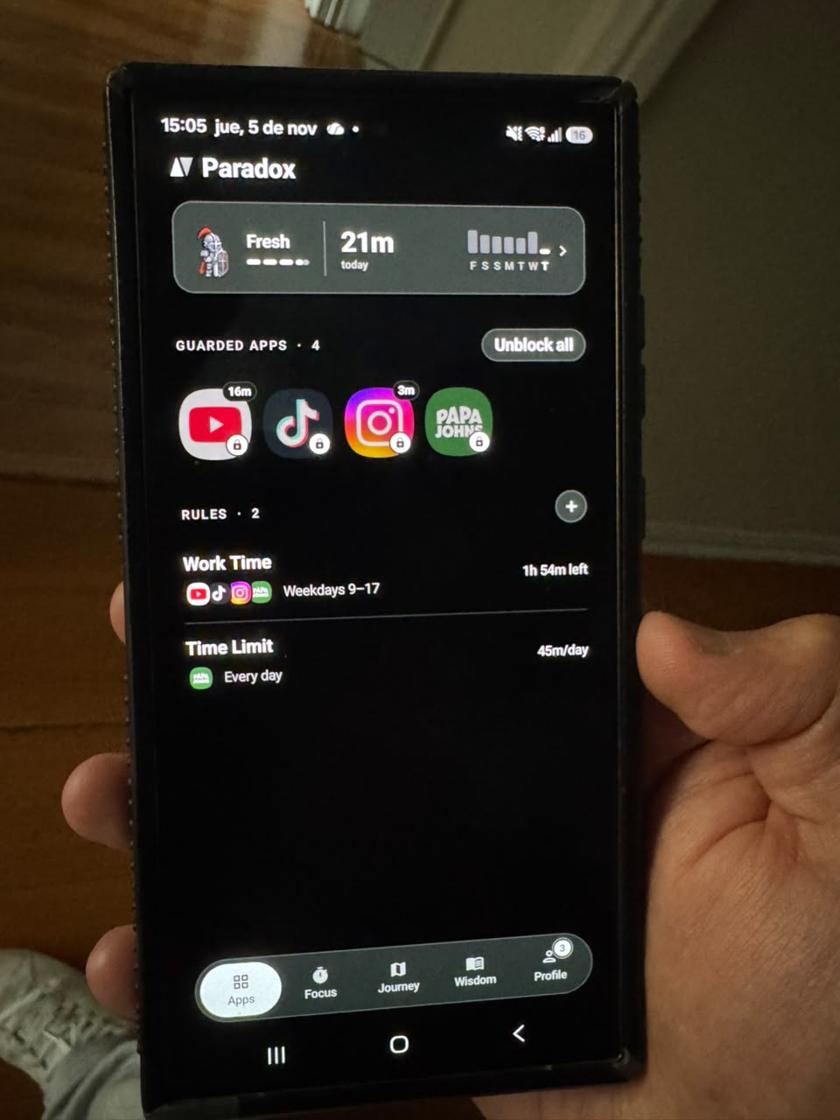
Paradox is a free app blocker for iPhone and Android. You pick TikTok (and anything else that eats your time) and decide when it is blocked: all day, during work hours, after 10 PM, or after a daily allowance such as 45 minutes.
When you open TikTok, a pixel-art guardian steps in front of it. You can wait it out, win a short pause, or tap Read something instead for a two-minute read. You can still turn the block off, but it takes a decision, not a reflex.
The less you open TikTok, the more XP you earn, and your guardian travels further on the map. No ads, and blocking is free forever. On Android, Paradox uses the Accessibility permission to see which app is open, never what you type, and nothing leaves your phone.
Common questions
Can I block TikTok completely on my phone?
Yes. On iPhone, set a 1-minute App Limit with Block at End of Limit on. On Android, set a short Digital Wellbeing app timer. Or block it with an app blocker like Paradox, which can block it all day or on a schedule.
How do I limit TikTok to 30 minutes a day?
Set a 30-minute App Limit in Screen Time on iPhone, a 30-minute app timer in Digital Wellbeing on Android, or a 30-minute daily allowance in Paradox.
How do I block TikTok only at night?
On iPhone, use Screen Time Downtime on a schedule. On Android, use Bedtime mode or an app blocker. In Paradox, make a rule with the hours you want TikTok blocked.
Will TikTok know I blocked it?
No. Screen Time, Digital Wellbeing and Paradox block the app on your phone. TikTok is not told anything.