How to block apps on Samsung and Xiaomi phones
Updated:
On Samsung and Xiaomi phones you can block apps for free with the built-in app timers in Digital Wellbeing. For schedules, website blocking and a block that's harder to dismiss, use an app blocker like Paradox, and on Xiaomi allow its Autostart and background pop-up settings, or MIUI and HyperOS can stop it from working.
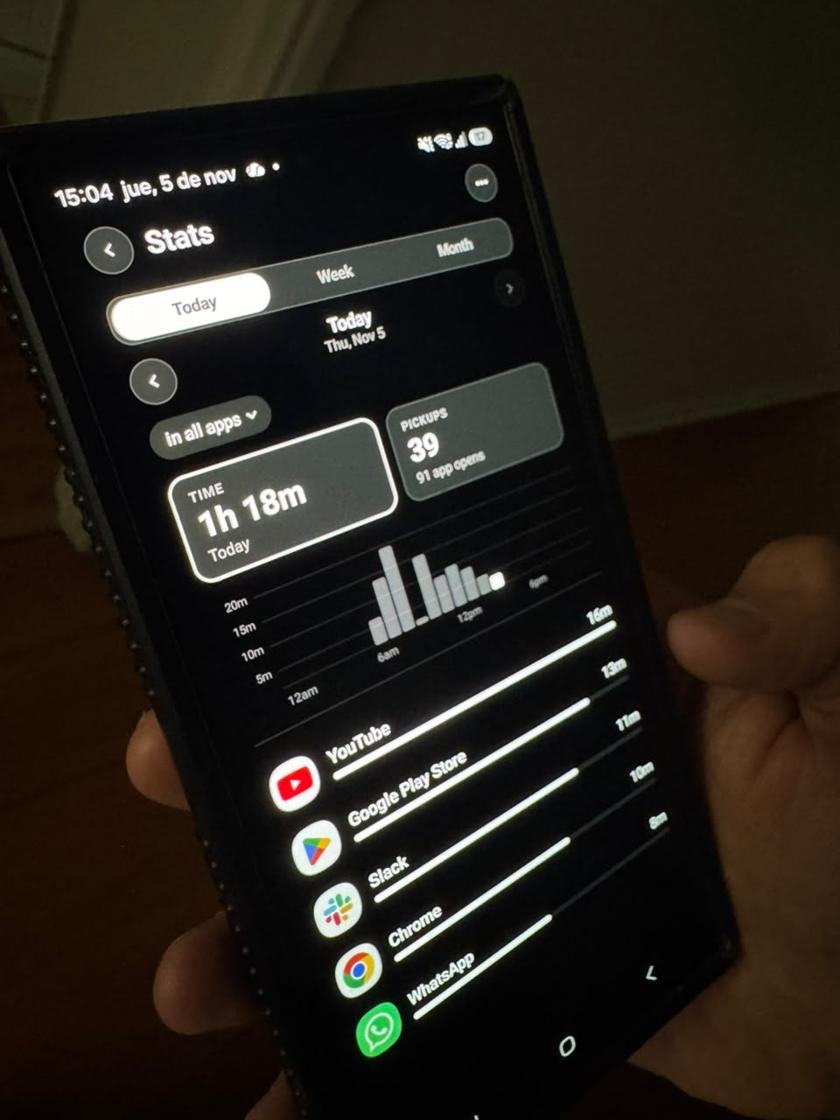
Samsung Galaxy: set an app timer
Samsung phones have Digital Wellbeing built in. The names move a little between One UI versions, but the path is usually:
- Open Settings and tap Digital Wellbeing and parental controls.
- Tap App timers.
- Choose the app you want to limit, like TikTok or Instagram.
- Set the daily time and save.
Before you start
Check how long you really spend in each app first. On both Samsung and Xiaomi, the Digital Wellbeing screen shows your time per app for today and the past week. Pick the two or three that take the most, not every app you feel guilty about. A short list is easier to keep.
Samsung: other built-in options
You can also tap the hourglass next to an app on the Digital Wellbeing screen to set a timer. When it runs out, the app greys out and closes until midnight. For quiet hours, look at Modes and Routines in Settings, where Samsung now keeps Bedtime and Focus-style modes.
Xiaomi, Redmi and POCO: set an app limit
Xiaomi phones have their own version. On HyperOS it's usually:
- Open Settings and tap Digital Wellbeing & parental controls (on some phones, Screen time).
- Open the Dashboard.
- Tap the app you want to limit.
- Set a daily limit (called App timer or App limits, depending on the version) and confirm.
- Can't find it? Type "App limits" or "Digital" in the Settings search bar.
The limits of built-in timers
Built-in timers on both brands work the same way: they count minutes per app per day. When the time is up, the app greys out until midnight. They don't block by hour, they don't cover websites, and the timer is one tap away from being switched off.
That's fine if all you want is a nudge. If you keep switching the timer off without thinking, you need something that adds a real pause at that moment.
Why app blockers stop working on Xiaomi
This is the most common complaint about app blockers on Xiaomi phones, and it has a real cause. MIUI and HyperOS switch two settings off for every new app, and an app blocker needs both.
The first is "Display pop-up windows while running in the background". Without it, MIUI quietly swallows the block screen, so the app you wanted to block just opens. The second is Autostart. Without it, when MIUI kills the blocker to save memory, or when you swipe it away from recent apps, its Accessibility service can stay "on" in Settings but stop working, until you turn it off and on again.
Other phones with similar settings
OPPO, realme, vivo and OnePlus phones have their own battery and background rules, and some of them also close apps they think you aren't using. If an app blocker stops working on one of these, look in its app settings for anything about battery optimisation, background activity or auto launch, and allow it.
On Samsung, the equivalent is Settings, Battery, Background usage limits: make sure your blocker isn't in Sleeping apps or Deep sleeping apps.
How to fix it
Paradox asks for both of these during setup on Xiaomi phones and shows a banner if one gets switched off, so you don't have to hunt for them.
- Open Settings, then Apps, then Manage apps, and tap your app blocker.
- Turn on Autostart.
- Open Other permissions and allow "Display pop-up windows while running in the background".
- Check that its Accessibility service is still on, under Settings, Additional settings, Accessibility.
Blocking apps with Paradox on Samsung or Xiaomi
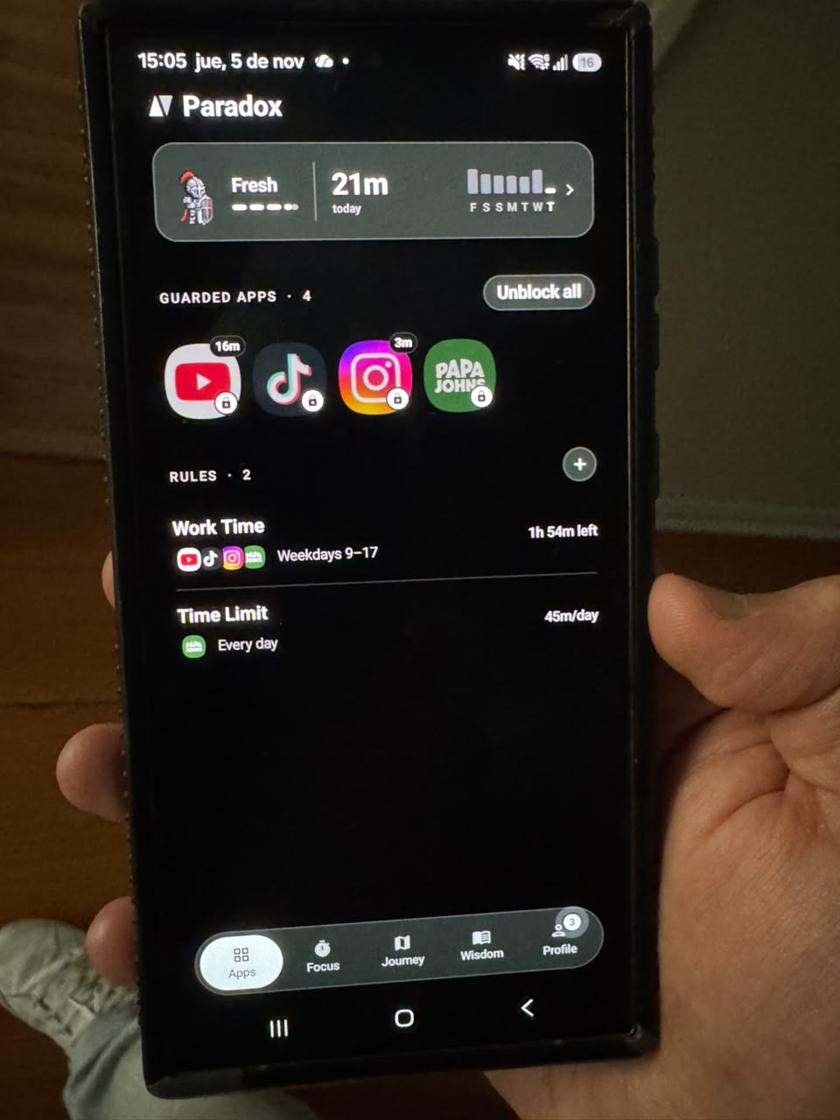
Paradox is a free app blocker for Android, with no ads. You pick the apps and websites, give each rule its hours or a daily allowance, and when you open a blocked app, a pixel-art guardian steps in front of it. You can wait, win a short pause, or read something for two minutes instead.
It needs Accessibility, to see which app or site is open (never what you type, and nothing leaves the phone), and Usage access, to count your minutes. On Xiaomi it also asks for Autostart and background pop-ups, for the reasons above.
Common questions
Why does my app blocker not work on Xiaomi?
Usually because MIUI or HyperOS has switched off its Autostart or its "Display pop-up windows while running in the background" permission. Turn both on in the app's settings, then check its Accessibility service is still on.
How do I set an app timer on a Samsung phone?
Open Settings, tap Digital Wellbeing and parental controls, then App timers, pick the app and set the daily time. Menu names can vary a little by One UI version.
Can I block apps on Samsung only during work hours?
The built-in app timers count minutes per day rather than hours of the day. An app blocker like Paradox lets each rule carry its own hours, like 9 to 5.
Is it safe to give an app blocker Accessibility permission?
It's the permission Android requires for an app to see which app is on screen. Paradox uses it only to see which app or website is open, never what you type, and nothing leaves your phone.