How to block Instagram on iPhone and Android
Updated:
To block Instagram, set an App Limit in Screen Time on iPhone or an app timer in Digital Wellbeing on Android. Instagram's own Daily limit only sends a reminder you can dismiss. If you keep scrolling past your limits, an app blocker like Paradox (free on both phones) puts a real pause in front of Instagram.

Block Instagram on iPhone
For a schedule instead of a daily total (for example, no Instagram after 10 PM), use Downtime in the same menu.
To block instagram.com in Safari as well, open Screen Time, Content and Privacy Restrictions, App Store and other content, Web Content, and add it under Never Allow. Turn on Content and Privacy Restrictions first if it is off.
- Open Settings, then Screen Time. Turn on App and Website Activity if needed.
- Tap App Limits, then Add Limit.
- Open Social, select Instagram, tap Next.
- Pick a daily time. Use 1 minute to block it almost completely.
- Leave Block at End of Limit on and tap Add.
Block Instagram on Android
When the time is up, Instagram is paused and its icon turns gray until midnight. On Samsung and Xiaomi phones the menu sits in a slightly different place; searching Settings for "app timer" usually finds it.
Digital Wellbeing timers cover the app, not instagram.com in a browser, so check that gap if you tend to switch to Chrome when the app is paused.
- Open Settings, then Digital Wellbeing and parental controls.
- Open the app list or App timers.
- Tap the timer next to Instagram.
- Choose your daily limit and tap OK.
Instagram's own time limit, and why it often doesn't work
Instagram has a Daily limit in the app: your profile, the menu, Your activity, Time spent, Daily limit. You choose a time and Instagram reminds you when you reach it. There are also break reminders for long sessions.
It is a reminder, not a block. When it appears you can close it and keep scrolling. Reports also say the shortest option was raised from 10 to 30 minutes, so it can't be set very low anymore. That is why so many people search for "Instagram time limit not working": it is working as designed, it just was never designed to stop you.
Why built-in limits are easy to ignore
Screen Time shows an Ignore Limit button. Digital Wellbeing timers can be removed in a few taps. Both are fine for people who mostly need a nudge.
If your thumb has learned to tap through, you need something that interrupts the reflex: a few seconds of waiting, a real choice, something else to do in that moment.
Other ways to use Instagram less
- Turn off notifications for likes and suggested posts, and keep messages if you need them.
- Move Instagram into a folder on the second screen, so you have to look for it.
- Mute or unfollow accounts that leave you feeling worse, so the feed is less sticky.
- Check Instagram on a computer only, where the feed is less endless than on the phone.
- Pick one time of day for Instagram, like after lunch, and block it the rest of the time.
When to use a blocker instead of a limit
A time limit counts minutes. A block decides hours. If you lose most of your time at one moment of the day (in bed, on the commute, while working), a schedule that blocks Instagram during that window usually works better than a daily total.
You can combine both: Instagram blocked during work hours, then a daily allowance in the evening.
Block Instagram with Paradox
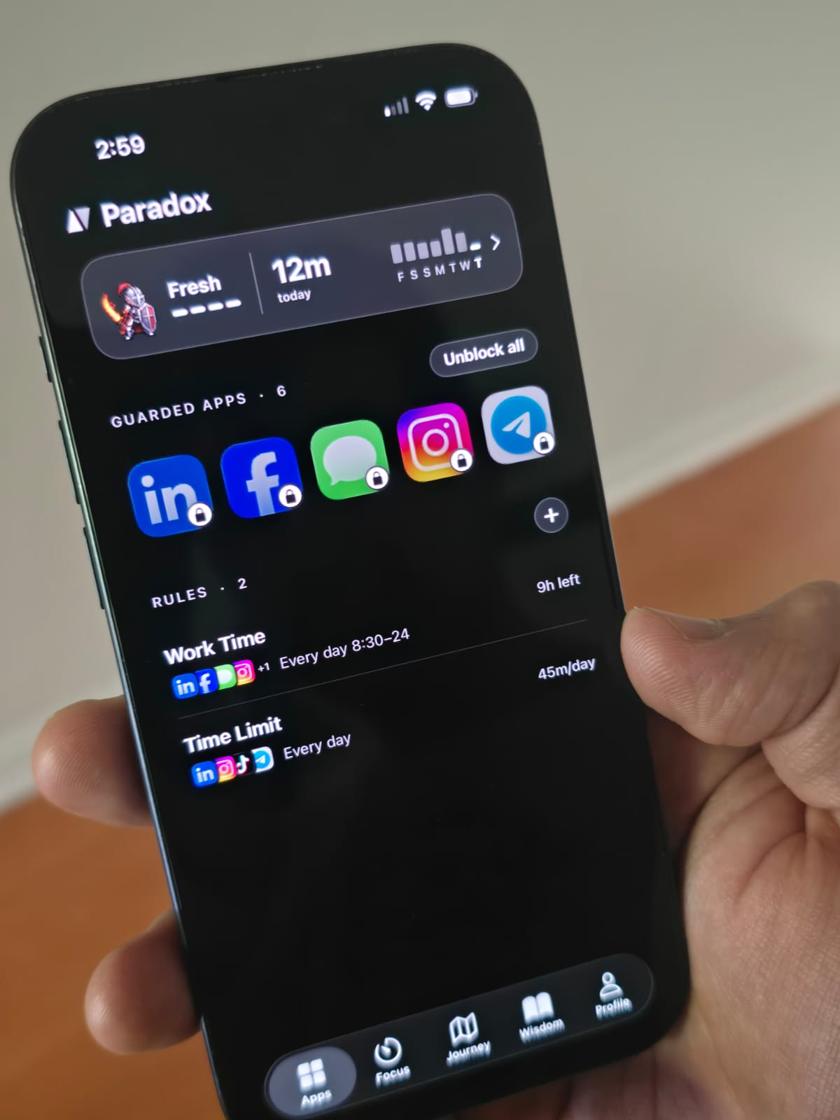
Paradox is a free app blocker for iPhone and Android. Add Instagram to a rule and choose when it is blocked: during work, in the evening, or after a daily allowance like 45 minutes. Two rules come ready when you install it.
Open Instagram while it is blocked and a pixel-art guardian stands in front of it. You can wait, win a short pause, or tap Read something instead. You can still switch the block off, but on purpose, not on autopilot.
Scrolling less earns XP, your guardian travels a map, and you collect new guardians. No ads, no account needed, and blocking is free forever. You can block websites too, so instagram.com in the browser is covered.
Common questions
Why is my Instagram time limit not working?
Instagram's Daily limit only shows a reminder you can close. It doesn't block the app. For a real limit use Screen Time, Digital Wellbeing, or an app blocker.
Can I block Instagram but keep WhatsApp?
Yes. Screen Time, Digital Wellbeing and Paradox all let you pick individual apps, so you can block Instagram and leave messaging apps alone.
Can I block Instagram in the browser too?
Yes. On iPhone, Screen Time can limit websites. Paradox blocks the sites you add in every browser on iPhone and Android.
Is there a free app to block Instagram?
Paradox is free on iPhone and Android with no ads. Blocking stays free forever.