Free app blocker for iPhone
Updated:
Your iPhone already has a free app blocker: Screen Time, with App Limits and Downtime. It works if you respect its limits, but it offers an Ignore Limit button that most people learn to tap. For more friction, Paradox is a free app blocker for iPhone (iOS 16 or later) with no ads, built on the same Screen Time system.
Block apps with Screen Time App Limits
- Open Settings and tap Screen Time. Turn on App and Website Activity.
- Tap App Limits, then Add Limit.
- Pick a whole category (Social, Games) or open it and select single apps.
- Set a daily time and keep Block at End of Limit on.
- Tap Add. The limit resets at midnight.
Block apps at certain hours with Downtime
During Downtime only the always-allowed apps open. Turn On Downtime Until Tomorrow is the one-off version.
You can also block websites from the same menu: Content and Privacy Restrictions, App Store and other content, Web Content, then add sites under Never Allow.
- In Settings, Screen Time, tap Downtime.
- Turn on Scheduled and choose the hours (every day or per day).
- Go back and tap Always Allowed to choose the apps that stay open during Downtime, like Phone and Messages.
Where Screen Time falls short
When a limit hits, iPhone shows a screen with Ignore Limit, which gives you one more minute, 15 minutes or the rest of the day. Without a Screen Time passcode it takes one tap. With a passcode you know, it takes two.
The result is familiar: the first week it works, then your thumb taps through before you have read anything. Screen Time was designed to inform, and it is good at that. It is less good at the moment of the impulse.
Downtime has the opposite problem: it blocks almost everything at once, so many people turn it off the first evening they need one app. A rule for just the two or three apps that cost you time is easier to keep.
Paradox: a free app blocker that adds a real pause
Paradox uses the same Apple Screen Time system, so blocks hold even while the app is closed. What changes is what happens at the wall.
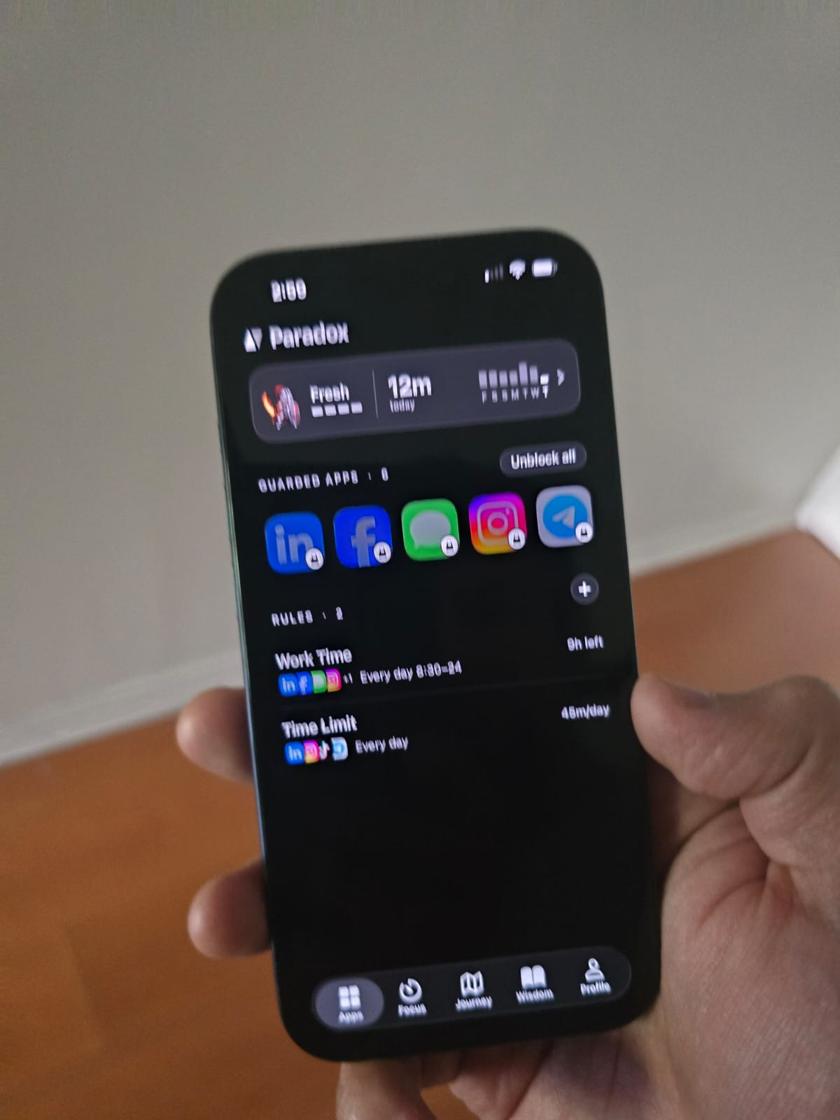
You pick the apps and websites to block and make rules with hours (a 9 to 5 work rule) or a daily allowance (45 minutes a day). Two rules come ready on install, and you can edit both.
When you open a blocked app, a pixel-art guardian stands in front of it instead of a dismiss button. You can wait, choose how long you really need and wait out a short countdown, or tap Read something instead for a two-minute read. You can always switch a block off on purpose.
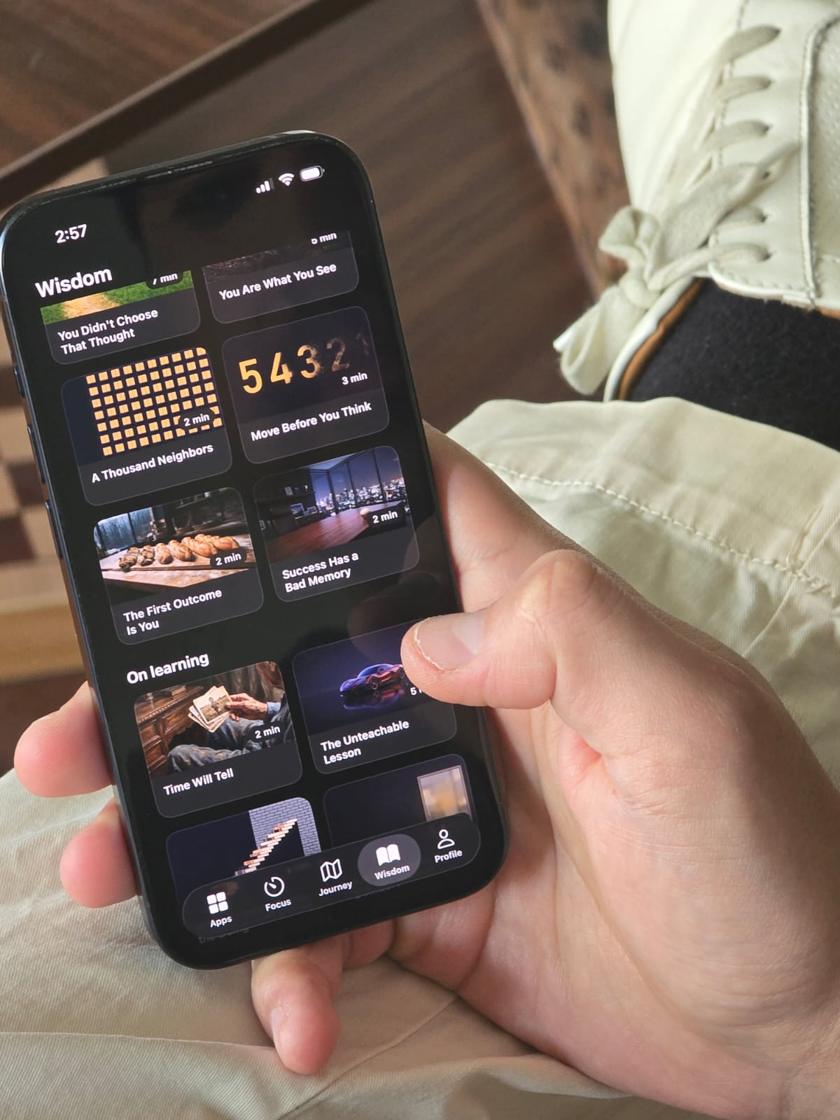
The less you use your blocked apps, the more XP you earn. Your guardian walks a map, you level up and collect guardians. There are also focus sessions, a timer with your guardian beside you.
App Limits, Downtime or an app blocker?
- App Limits: best for a daily total, like 30 minutes of games. Easy to set, easy to ignore.
- Downtime: best for whole blocks of time, like nights. Blocks almost everything, so it can feel heavy.
- An app blocker like Paradox: best when you need a pause you won't tap through, rules with hours for just a few apps, and websites blocked in every browser.
Tips to make any blocker work
- Block the two or three apps that cost you the most, not everything. A small rule you keep beats a big one you switch off.
- Set the hours around your real weak moments: in bed, the first hour of work, the commute.
- Keep something to do in the gap: a book, a walk, a short read. The urge passes faster when it has somewhere to go.
- Review after a week and change the rule instead of abandoning it.
Privacy and price
Paradox needs the Screen Time (Family Controls) permission, which you grant on your phone and can withdraw in Settings. The apps you pick reach Paradox as anonymous tokens with no name attached, so Paradox never learns which apps you blocked.
Blocking is free forever, with no ads and no account needed. Premium is an optional subscription for extra guardians and backgrounds. Blocked websites show Apple's own block screen rather than the guardian. More answers are on our support page.
Common questions
Is there a free app blocker for iPhone?
Yes. Screen Time is built in and free. Paradox is a free app blocker for iPhone with no ads that adds a guardian and a real pause in front of blocked apps.
How do I block an app on my iPhone completely?
Set a 1-minute App Limit on it in Screen Time with Block at End of Limit on, or add it to a Paradox rule that blocks it all day.
Can I block apps only during work hours?
Yes. Use Screen Time Downtime on a schedule, or a Paradox rule with your working hours. Paradox comes with a 9 to 5 rule ready to edit.
Can Paradox see what I do in other apps?
No. Apple passes the apps you choose as anonymous tokens, and usage stays in a sandboxed extension. Paradox knows a block appeared, not what was behind it.